How Do You Know When Your Gaming PC Needs an Upgrade?
The most obvious sign is that games you care about are running worse than they used to, or worse than you expect them to. Frame rates dropping below comfortable levels, stuttering that was not there before, or loading times that have become painful are all symptoms. The tricky part is that these same symptoms can come from software problems, dust buildup, failing hardware, or genuine performance limitations depending on what is actually happening in the system. Before spending money on an upgrade, it is worth knowing what is actually causing the problem.
The golden rule is this: identify the bottleneck before buying anything. A GPU upgrade on a system that is being bottlenecked by an old CPU wastes money. A RAM upgrade on a system that simply needs cleaning wastes money. The upgrade that actually fixes the problem is the only one worth doing.
Frame Rate Is the Most Useful Signal
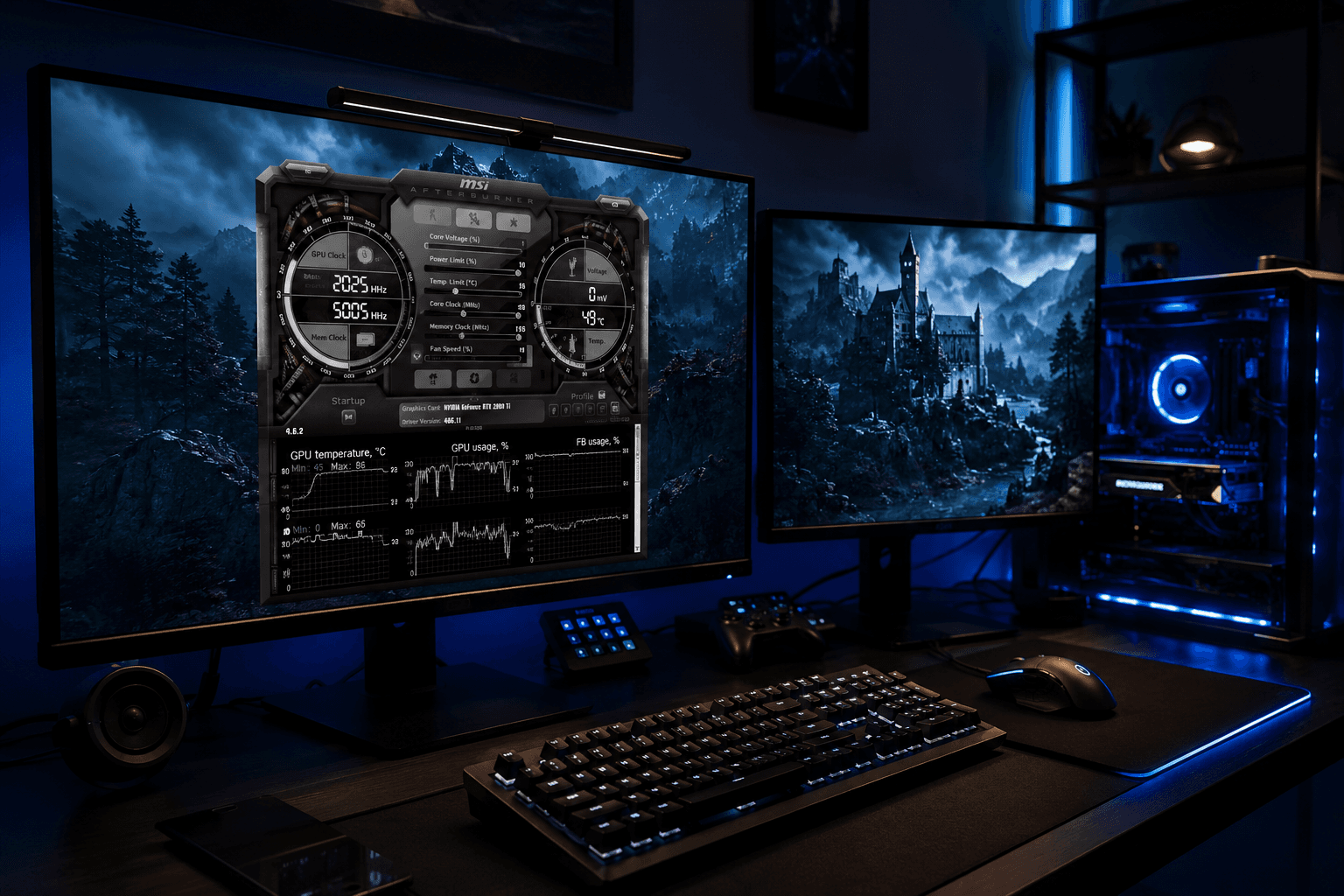
If you are not already monitoring frame rates during gaming, start now. MSI Afterburner with the RivaTuner overlay is free, lightweight, and shows you exactly what is happening in real time. NVIDIA's GeForce overlay and AMD's Radeon overlay do similar things without third-party software. The number you see on screen tells you where performance actually sits, rather than where you assume it sits.
A frame rate that was consistently 100fps twelve months ago and is now sitting at 70fps on the same game at the same settings means something has changed. That could be a game update that increased system requirements, Windows updates that changed background resource usage, a driver issue, accumulated dust on cooling hardware, or genuine component aging. It does not automatically mean a hardware upgrade is needed.
A frame rate that drops below your target threshold in new games but is fine in older ones tells a different story. That is a component struggling with modern requirements rather than a system that has degraded. The two diagnoses lead to different solutions.
Rule Out the Cheap Fixes First
Before any upgrade conversation happens, rule out the things that cost nothing or almost nothing to fix.
Dust and thermals. A system that is thermally throttling because the coolers are clogged with dust performs worse than a clean system with identical hardware. Check your temperatures in HWiNFO or MSI Afterburner while gaming. If your CPU is hitting 90 degrees or your GPU junction is regularly above 100 degrees, thermal throttling is reducing your clock speeds and cutting into performance. A clean might solve the problem entirely without spending a penny on hardware.
Driver issues. GPU drivers go wrong occasionally. A bad driver update can reduce performance, cause stuttering, or introduce compatibility issues with specific games. A clean driver reinstall using DDU (Display Driver Uninstaller) in safe mode removes the old driver completely before installing the latest version. It takes thirty minutes and fixes more problems than people expect.
Background processes. Windows has a habit of accumulating background software that eats CPU and RAM resources. A freshly formatted and reinstalled Windows system typically runs noticeably faster than one that has been running for two or three years with accumulated software. This is not always practical, but it is worth checking Task Manager during gaming to see whether anything is consuming resources unexpectedly.
Storage health. An SSD that is nearly full or beginning to fail produces symptoms that look like general system slowness. CrystalDiskInfo is free and shows SSD health status. A drive showing warnings or errors is a problem to fix before anything else.
Identifying Which Component Is the Bottleneck
Once you have ruled out the cheap fixes, monitoring during gaming tells you where the actual constraint is. Here is what to look for.
GPU at 99 percent usage with CPU well below 80 percent. The GPU is the bottleneck. This is the most common scenario in graphically demanding games at medium to high settings. Upgrading the GPU would improve performance. Upgrading the CPU would not.
CPU at 90 to 100 percent with GPU well below 80 percent. The CPU is the bottleneck. This happens more in competitive games with high frame rates, simulation games, and strategy titles. Upgrading the GPU does nothing here. The CPU or platform is the constraint.
Both GPU and CPU sitting below 80 percent with stuttering. This often points to RAM capacity or speed issues, storage problems, or a software issue rather than a raw hardware limitation. Check RAM usage in Task Manager and GPU VRAM usage in GPU-Z.
GPU VRAM consistently at or above its maximum. The game is running out of VRAM and spilling to system RAM, which is dramatically slower. This causes stuttering and texture pop-in that no amount of frame rate headroom fixes. If your 8GB GPU is being asked to run games that need 10GB, VRAM shortage is the cause. This is a real and common issue with current generation games if you are on an older GPU with limited VRAM. Our breakdown of GPU VRAM for gaming covers how much you actually need for different resolutions and game types right now.
Signs the GPU Specifically Needs Replacing
The GPU is the most frequently upgraded component in a gaming PC and the one that has the most direct impact on gaming performance. Signs it specifically is the limiting factor:
✓ You are consistently GPU-bound at the settings and resolution you want to game at, and lowering settings to achieve acceptable frame rates is producing a visual result you find unacceptable
✓ The GPU is three or more generations old and new game releases are increasingly demanding settings reductions just to achieve 60fps
✓ VRAM usage is maxing out regularly in titles you play, causing visible stuttering and pop-in
✓ The GPU is showing higher temperatures than it used to at the same workloads, suggesting degraded thermal paste or failing fans, and a clean has not resolved it
✓ Ray tracing or other modern features you want to use are simply not supported on the current GPU architecture
If GPU-bound performance is the confirmed issue, the question becomes which card to upgrade to. That decision involves both the target resolution and what the current platform can drive without a CPU bottleneck. Our look at RTX 4070 vs RTX 4080 covers where the performance gap between those two cards sits in real gaming scenarios, which is useful if you are at that tier of upgrade decision.
Signs the CPU Specifically Needs Replacing
CPU upgrades are less frequent than GPU upgrades but they come up and are sometimes the right call. Signs the CPU is genuinely the constraint:
✓ You are CPU-bottlenecked in the games you play most, confirmed by monitoring showing high CPU usage and comfortable GPU usage
✓ The CPU struggles with high frame rate gaming in competitive titles, sitting at 90 percent or above while the GPU idles below 60 percent
✓ The current CPU platform is old enough that no meaningful upgrade path exists within the same socket, and a platform change is needed to make any CPU improvement
✓ Workloads outside gaming, such as streaming, video editing, or content creation, are taking noticeably longer than they should on current hardware
The CPU upgrade decision is more complicated than the GPU upgrade decision because it often involves changing the motherboard and RAM simultaneously if the socket has changed. That is a larger investment and needs to be weighed against the performance gain it actually produces in the specific games and workloads you care about.
Signs the RAM Is the Bottleneck
RAM issues are underdiagnosed because the symptoms look similar to other problems. Signs RAM specifically is contributing to poor performance:
✓ Task Manager shows RAM consistently above 85 to 90 percent usage during gaming
✓ Page file activity is visible in Resource Monitor under Memory, indicating the system is using SSD space as overflow because RAM is full
✓ Stuttering appears specifically when moving between areas in open world games, which are the most RAM-hungry load type
✓ XMP or EXPO is not enabled and RAM is running below its rated speed, which on AMD platforms in particular has a real impact on gaming performance
✓ RAM is running in single channel because only one stick is installed or sticks are in the wrong slots
Many of these RAM issues cost nothing to fix. Enabling XMP in the BIOS takes two minutes. Moving sticks to the correct paired slots costs nothing. Checking if RAM is running in dual channel costs nothing. Confirm these are correct before assuming RAM capacity is the issue.
The Platform Age Question
There comes a point where the platform itself is the limiting factor rather than any individual component. If you are running a six or seven year old platform, the CPU socket is likely end of life, upgrade paths within it are exhausted, and the components available for it are getting older and more expensive through supply scarcity rather than quality.
At that point, the calculus shifts from "which component do I upgrade" to "is it worth putting more money into this platform at all." A GPU upgrade on a very old system might be held back by a CPU that cannot feed the new GPU fast enough at high frame rates. A new CPU requires a new board and RAM on a different platform. The total cost of extending an old platform approaches the cost of a meaningful new build.
This is also where prebuilt upgrade paths matter. Our article on upgrading a prebuilt covers what is and is not feasible on typical prebuilt systems, which is relevant if you are on a branded system and wondering whether it is worth upgrading rather than replacing.
When Cleaning Should Come Before Upgrading
A point worth making explicitly: if your system has not been properly cleaned in six months or more, clean it before drawing any conclusions about whether it needs a hardware upgrade. Thermal throttling from dust buildup produces symptoms that are indistinguishable from genuine hardware limitations without temperature monitoring. I have seen systems that looked like they needed a new GPU and CPU that were simply choked with dust. Temperatures dropped by twenty degrees after cleaning and performance came back to what it should have been.
Regular maintenance is genuinely cheaper than premature upgrades. If you do not have a cleaning routine in place yet, our guide on cleaning your gaming PC covers how often to do it and what to focus on, which is worth reading before making any upgrade decisions based on performance that might be recoverable through maintenance.
Upgrade Priority Order
If you have confirmed a genuine hardware limitation, here is the upgrade order that makes sense for most gaming PCs:
1. GPU first. It has the most direct impact on gaming performance in the widest range of games. Unless you are confirmed CPU-bottlenecked, the GPU is where upgrade money produces the most consistent return.
2. RAM capacity and speed second. If RAM is full or running in single channel or below its rated XMP speed, fix that before anything else. It is cheap and the improvement is real.
3. Storage third. A full or slow boot drive produces system-level sluggishness that affects everything. An NVMe upgrade is cheap and the quality-of-life difference is immediate.
4. CPU and platform last. Because it involves the most collateral cost (new board, potentially new RAM generation), a CPU platform upgrade is the one to do when the others have been exhausted and the CPU is confirmed as the genuine constraint.
Frequently Asked Questions
How do I know if my GPU or CPU needs upgrading?
Monitor both during gaming using MSI Afterburner or HWiNFO. If your GPU is consistently at 99 percent and the CPU is comfortable, the GPU is the bottleneck. If the CPU is maxed out and the GPU is below 80 percent, the CPU is the issue. Both sitting below 80 percent with stuttering suggests RAM or software as the cause.
How long should a gaming PC last before needing an upgrade?
A mid to high-range GPU typically stays competitive for three to five years at its target resolution. CPUs last longer, often five to seven years before platform limitations become a significant factor. Individual components age differently, and a full system replacement is rarely necessary all at once.
Is it worth upgrading an old gaming PC or buying a new one?
If the platform is more than six years old, adding another GPU may be limited by an old CPU that cannot keep up. In that case, the cost of a meaningful upgrade can approach the cost of a new mid-range system. Do the maths on what the total upgrade cost produces in performance versus what a fresh build at the same budget would achieve.
Why is my gaming PC slower than it used to be?
Dust buildup causing thermal throttling, driver issues, accumulated background software, a nearly full or degraded storage drive, and RAM running below its rated speed are all common causes that predate genuine hardware aging. Rule all of these out before concluding that hardware needs replacing.
Does RAM affect gaming performance significantly?
Running below 16GB in 2026, running in single channel, or running DDR5 below 6000MHz on AMD AM5 all affect performance in measurable ways. Fixing RAM configuration is often the cheapest performance improvement available on an existing system.
When should I upgrade my GPU?
When you are confirmed GPU-bottlenecked, lowering settings to achieve acceptable frame rates is producing results you find unacceptable, and the issue cannot be resolved through driver updates, cleaning, or thermal improvement. VRAM shortage in current generation games is an increasingly common trigger.
Final Thought
The most expensive upgrade mistake is buying hardware to fix a problem that was not a hardware problem. Monitor your system during gaming, rule out dust and drivers and software before opening your wallet, identify which specific component is actually the constraint, and then upgrade that one thing. A targeted upgrade on the right component at the right time produces a dramatically better outcome than scattergun spending on parts that were not the bottleneck.