Can You Add More RAM to a Prebuilt Gaming PC?
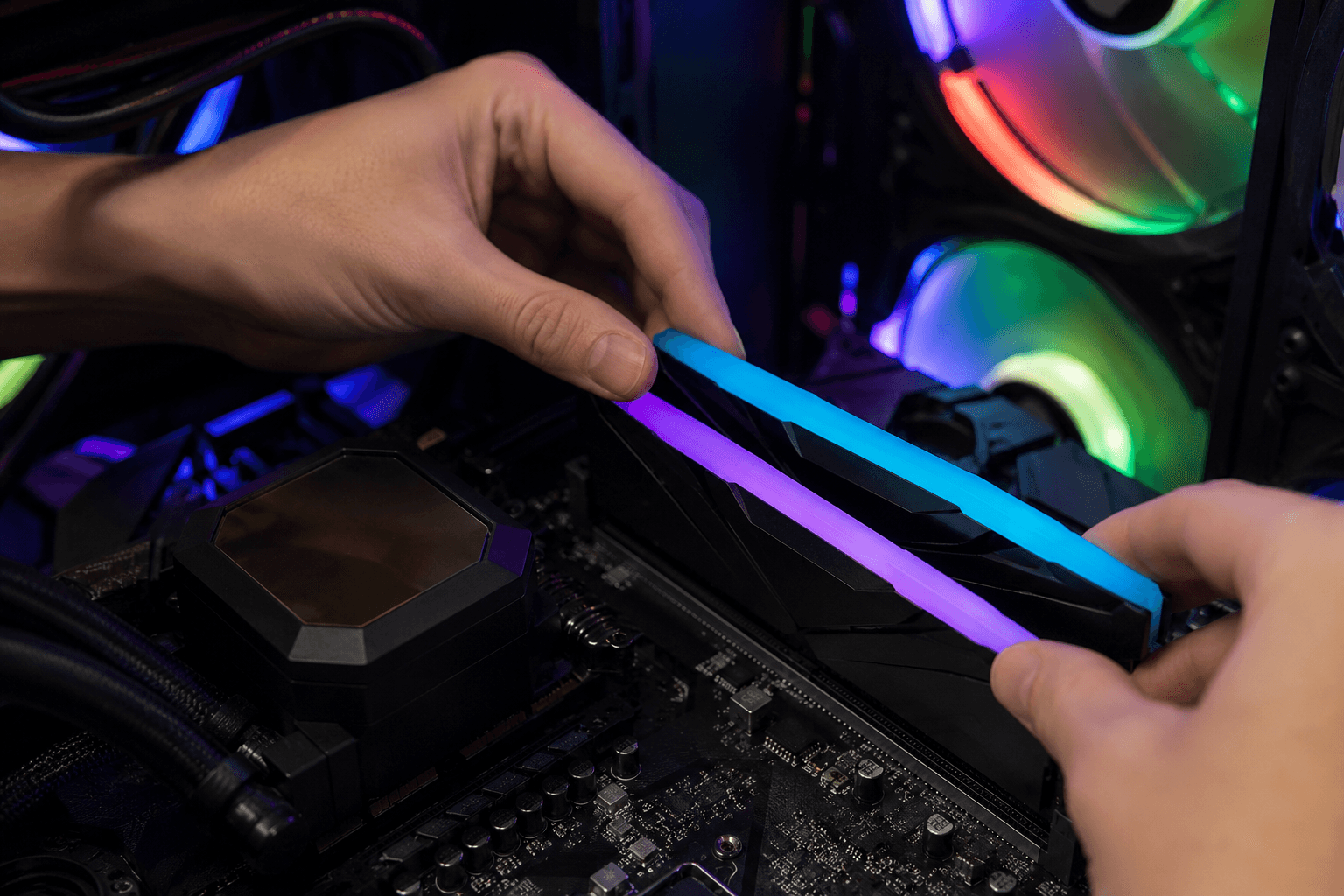
Yes, you can add more RAM to most prebuilt gaming PCs. In the majority of cases it's one of the simplest and most cost-effective upgrades you can make. That said, there are a few things worth checking before you order anything — because not every prebuilt makes it quite as straightforward as you'd hope.
This guide covers everything from checking your current setup, to buying the right kit, to fitting it correctly so you actually get the performance improvement you're after.
Why People Upgrade RAM in a Prebuilt
Most prebuilt gaming systems ship with 16GB of RAM installed. A few years ago that was perfectly adequate. For the majority of games it still holds up, but modern titles are increasingly demanding, and if you're running Chrome, Discord, a game, and anything else in the background simultaneously, 16GB can start to feel tight. You might notice stuttering, longer load times, or the system slowing down under load.
The other common scenario is prebuilts that ship with a single stick of RAM rather than two. A lot of manufacturers do this to hit a lower price point, and it means you're missing out on dual-channel performance. Adding a second matching stick can make a noticeable difference to gaming performance without touching anything else. Before you spend money on any other upgrade, it's worth checking whether your prebuilt can take more RAM — because this one is often overlooked.
How to Check How Much RAM You Have and How Many Slots Are Free
Before buying anything, you need to know two things: how much RAM is currently installed, and how many slots your motherboard has available.
On Windows, the quickest method is to open Task Manager (Ctrl + Shift + Esc), go to the Performance tab, and click Memory. This tells you the total installed RAM, the speed it's running at, and critically, how many slots are in use. If it says "2 of 4 slots used", you have two free slots. If it says "2 of 2 slots used", you'd need to replace what's there rather than simply add to it.
You can also check your motherboard model directly. Most prebuilts use a standard consumer board with either two or four DIMM slots. Budget prebuilts often have two-slot boards, which limits your upgrade options. Mid-range and higher-end systems tend to have four slots, giving you more flexibility.
What Type of RAM Does Your Prebuilt Use?
This is where people sometimes go wrong. You can't mix DDR4 and DDR5 — they use different physical slots and are not cross-compatible. If your prebuilt shipped with DDR4, you need DDR4. If it shipped with DDR5, you need DDR5. There's no grey area here.
The speed matters too, though it's less critical than the type. Most motherboards will accept RAM running at different speeds and fall back to the slowest installed stick. If your current RAM is 3200MHz and you add a 3600MHz kit, both sticks will likely run at 3200MHz — which is fine, but it's worth knowing. For best results, match the speed and timings of what's already in your system, or replace everything with a matched dual-channel kit.
If you're unsure which generation your system uses, the Task Manager memory screen shows the speed. DDR4 typically runs between 2133MHz and 3600MHz. DDR5 typically runs from 4800MHz upwards, though the exact figures vary. There's a full breakdown of the differences between DDR4 and DDR5 if you want to understand the generational gap before deciding on your upgrade path.
Can You Just Add a Single Stick or Do You Need a Matched Pair?
Technically you can add a single stick, but it's not recommended for gaming. Running in dual-channel mode — two sticks in the correct paired slots — genuinely improves performance compared to a single stick of the same total capacity. The bandwidth difference matters more in gaming than most benchmarks suggest, particularly at higher frame rates.
If your prebuilt came with a single 16GB stick, the right move is to add a second 16GB stick that matches it as closely as possible — same speed, same manufacturer if you can manage it. If you can't find an exact match, buy a matched 2x16GB kit and replace the single stick entirely. A mismatched pair running in dual-channel will usually still outperform a single stick, but a proper matched kit is cleaner.
One common mistake I see is people adding a cheap 8GB stick to a system that already has a 16GB stick and expecting the same result. You end up with 24GB in mismatched sticks with different speeds, potentially running in single-channel mode, which gains you almost nothing useful for gaming and can actually introduce instability.
How Much RAM Do You Actually Need?
For most gaming use cases, 32GB is the sweet spot right now. It covers demanding games, background apps, and browser tabs comfortably, without the overkill of going higher. If your prebuilt has 16GB across two sticks, you'd need to replace both to reach 32GB — that's the realistic upgrade path on a two-slot board.
If you have a four-slot board with a single 16GB stick, you can add another 16GB stick for 32GB total, then potentially expand further later. That's the most flexible scenario. Going beyond 32GB for gaming alone rarely produces a meaningful return unless you're also running content creation workloads alongside your gaming sessions. There's a detailed look at 16GB versus 32GB for gaming that's worth reading if you're on the fence about how much to target.
Will Adding RAM Void Your Warranty?
This is a legitimate concern and the answer varies by brand. Some prebuilt manufacturers specifically state that opening the case or swapping components voids the warranty entirely. Others allow RAM and storage upgrades without affecting coverage. Check the documentation that came with your system, or look up the manufacturer's warranty terms online before opening anything.
If your prebuilt is still under warranty and you're unsure, contacting support first is the sensible move. It's also worth noting that some systems use a warranty sticker on a screw — if that's broken, some manufacturers treat it as evidence of tampering regardless of what you actually did inside.
The Installation Process
Fitting RAM is about as simple as PC upgrades get. Power down the system, unplug it from the wall, and ground yourself by touching a metal surface. Open the case and locate the DIMM slots on the motherboard. Release the retention clips at each end of the slot, line up the notch on the RAM stick with the key in the slot, and press down firmly until you hear both clips click into place.
If you're adding a second stick to a board with four slots, check which slots to use. Motherboards have paired slots — usually slots 1 and 3, or slots 2 and 4, depending on the board. Running your sticks in the wrong slots drops you out of dual-channel mode and wastes most of the upgrade. Your motherboard manual specifies which slots to use, and it's usually printed on the board itself.
After fitting, boot the system and go back to Task Manager to confirm the new total is recognised. If Windows doesn't show the full amount, reseat the sticks and try again.
Enable XMP or EXPO After Upgrading
This step gets missed constantly. By default, RAM often runs at its base JEDEC speed after installation, not the advertised speed on the label. If your new kit says 3600MHz DDR4 or 6000MHz DDR5, you need to enable XMP (for Intel platforms) or EXPO (for AMD platforms) in the BIOS to actually run at that speed.
To do this, restart the system and enter the BIOS by pressing the key shown on your startup screen — usually Delete or F2. Find the XMP or EXPO setting, enable it, save, and exit. The system will reboot at the correct speed. If it causes instability, some kits need a manual speed adjustment rather than running at full XMP, but this is relatively rare.
Running at base speeds when you've paid for higher-speed RAM is a waste. Always enable XMP or EXPO. It's a thirty-second job in the BIOS and it matters more than most people realise. If your system starts running warmer than expected after the upgrade, check out the guide on thermal throttling and how to prevent it — RAM itself doesn't generate significant heat, but upgrades are a good moment to confirm temperatures across the whole system are in order.
What If Your Slots Are Full?
If all your DIMM slots are occupied, your only option is to replace the existing sticks. This costs more upfront but it's still very much worth doing if you're on 16GB and need more headroom. Sell or repurpose the old RAM rather than binning it — 16GB DDR4 kits still have value secondhand.
The situation where you need to think more carefully is if you're on a prebuilt with a locked or proprietary motherboard. A handful of manufacturers use non-standard boards that don't support standard DIMM configurations, or they solder RAM directly to the board with no upgrade path. This is relatively rare in desktop prebuilts but it does happen with very compact or all-in-one style systems. Checking the board model beforehand avoids an unpleasant surprise.
Quick Upgrade Checklist
✓ Check slots in Task Manager — Performance — Memory
✓ Note current RAM type (DDR4 or DDR5) and speed
✓ Confirm your motherboard model and maximum supported capacity
✓ Buy a matched kit or a stick that mirrors your existing RAM
✓ Install in the correct dual-channel slots
✓ Enable XMP or EXPO in BIOS after installation
✓ Verify the total in Task Manager once booted
Is It Worth It?
If you're on 16GB in single-channel, absolutely. This is one of the few upgrades where you get a tangible improvement without spending a significant amount of money. A matched 16GB DDR4 kit costs very little and will outperform a solo 16GB stick in games that push memory bandwidth. If you're already on 32GB in dual-channel, adding more RAM is rarely the right next upgrade to consider — your bottleneck is likely elsewhere, and understanding how to choose RAM correctly is useful before spending more.
The honest answer is that RAM upgrades in prebuilts are usually worth doing early and cheaply. They're low risk, easy to install, and often dramatically improve the feel of a system under real gaming conditions.
Frequently Asked Questions
Can I add any RAM to my prebuilt gaming PC?
Not quite. The RAM must match the type your system uses (DDR4 or DDR5), fit within your motherboard's supported speed range, and fit physically in the available slots. Check Task Manager and your motherboard model before buying anything.
Will adding RAM improve FPS in games?
It depends on where your current bottleneck is. If you're on 16GB in single-channel, adding a second stick to run in dual-channel can improve average frame rates and reduce stuttering noticeably. If you're already on 32GB dual-channel, additional RAM won't help FPS.
Do I need to reinstall Windows after adding RAM?
No. Windows detects the new RAM automatically on the next boot. Just make sure to enable XMP or EXPO in the BIOS if you're running faster-rated memory.
Can I mix different brands of RAM?
You can, but it's not ideal. Mixed brands often work fine, but compatibility issues are more likely than with a matched kit. If you're adding to existing RAM, try to find a stick with the same speed and timings. If you're replacing everything, buy a matched dual-channel kit.
How do I know if my prebuilt supports RAM upgrades?
Open Task Manager, go to Performance, then Memory. It shows how many slots are in use. Check your prebuilt's product page or documentation for the motherboard model, maximum supported capacity, and whether standard DIMM slots are used.
What happens if I install RAM in the wrong slots?
The system will likely still boot, but the RAM may run in single-channel mode rather than dual-channel. This reduces memory bandwidth and impacts gaming performance. Use the paired slots specified in your motherboard manual.
Is 64GB RAM overkill for gaming?
For pure gaming, yes. 32GB covers virtually everything you'll need. 64GB makes sense if you're running demanding content creation tasks — video editing, 3D rendering — alongside gaming. Otherwise the money is better spent on a GPU upgrade.