What Is Thermal Throttling and How Do You Stop It?
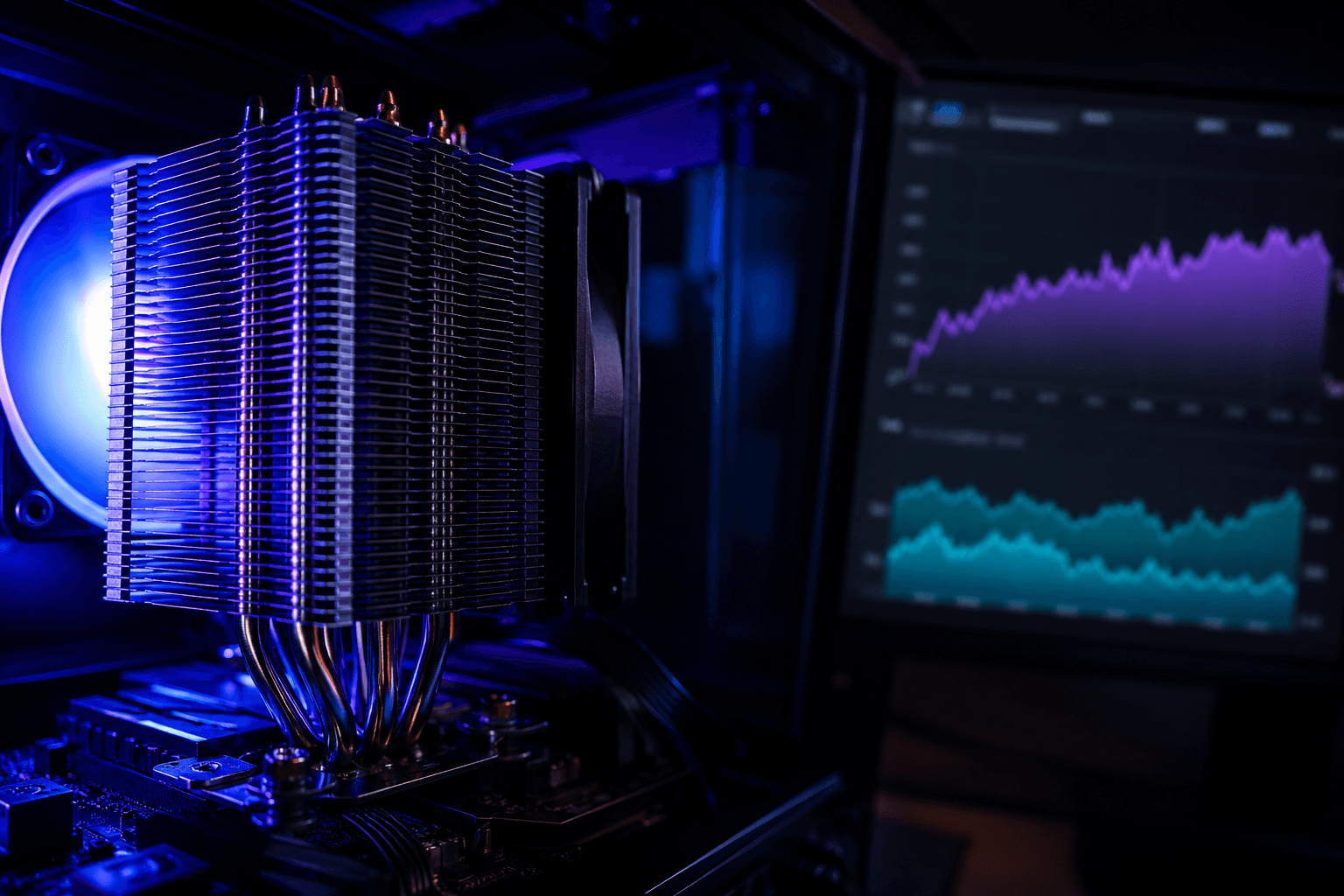
Thermal throttling is what happens when a CPU or GPU gets too hot and deliberately reduces its own clock speed to bring temperatures down. The component does not break. It does not shut off. It just runs slower until it cools enough to resume normal speeds. The result from your perspective is reduced frame rates, stuttering, and a PC that performs well below what its specifications suggest it should.
Most people experiencing thermal throttling do not know that is what is happening. The symptoms look identical to a hardware bottleneck or a game that simply demands more than the system can provide. The difference is that thermal throttling is almost always fixable without buying new hardware, and missing it means spending money on upgrades that will not help because the underlying problem is still there underneath the new components.
How Thermal Throttling Actually Works
Every modern CPU and GPU has a built-in thermal protection mechanism. As the chip temperature rises toward its maximum rated junction temperature, the processor begins reducing its clock speed in steps. This is called throttling. It is a deliberate design choice: better to run slower than to sustain damage from sustained operation above the thermal limit.
The temperature at which throttling begins varies by chip. Intel CPUs typically start throttling around 100 degrees Celsius for the CPU package temperature. AMD Ryzen CPUs have a slightly higher TjMax (junction temperature maximum) on some models, but will throttle before that point through a mechanism called Precision Boost which ramps speeds up and down based on available thermal headroom. NVIDIA GPUs throttle when junction temperature approaches 83 to 87 degrees depending on the card and BIOS configuration. AMD GPUs have similar thresholds.
What makes throttling particularly annoying is that it is not binary. A chip does not throttle at 100 percent and then stop throttling entirely. It throttles in proportion to how far above the comfortable operating range it is running. A CPU sitting at 95 degrees might be running at 85 percent of its rated clock speed. At 100 degrees it might be at 70 percent. That is a significant performance reduction that plays out over the entire duration the system is in that thermal state, which during extended gaming sessions can be the entire session.
The Most Common Causes
Dust buildup on coolers and heatsinks. By a significant margin this is the most common cause. A heatsink with dust-clogged fins cannot dissipate heat into the airflow moving through it. The fan moves air but the air cannot reach the fin surface because dust is blocking it. Temperature climbs. Throttling kicks in. The fix is a clean. If you have not cleaned your system in six months or more and are experiencing throttling symptoms, try the clean before anything else. It costs nothing and fixes the problem completely in the majority of cases.
Dried or poor quality thermal paste between the CPU and cooler. Thermal paste transfers heat from the CPU lid to the cooler base. Over time, particularly with cheaper pastes, it dries out, cracks, or loses its thermal conductivity. When this happens there is an air gap or degraded contact between two surfaces that need to be in excellent thermal contact. CPU temperatures climb significantly even with an otherwise healthy cooling setup. On systems over three years old, dried thermal paste is worth suspecting if temperatures are high despite the cooler being clean.
Inadequate cooling for the CPU or GPU being used. A high-performance CPU paired with a stock or budget cooler can hit thermal limits under sustained gaming or workload load even when new. Intel's higher-end desktop CPUs in particular are known for running hot under sustained load. If the cooler was the wrong choice for the CPU from the start, no amount of cleaning will solve the underlying mismatch.
Poor case airflow. Heat generated by components needs to go somewhere. A case with blocked intakes, poorly positioned fans, or no exhaust path traps hot air inside rather than removing it. The ambient temperature inside the case rises, which means coolers are trying to dissipate heat into already-warm air rather than cool air. The thermal headroom available to the components shrinks. Choosing the right PC case for airflow matters for sustained performance under load, particularly in compact cases where airflow design varies enormously between models.
High ambient room temperature. A PC in a room that regularly reaches 30 degrees in summer runs noticeably hotter than the same system in a cool room. Cooling solutions are designed assuming a certain intake air temperature. When that assumption is violated by the environment, thermal headroom shrinks across the board. This is not something you can fix with internal changes, but it explains seasonal temperature variation that some people notice and find confusing.
How to Confirm You Are Experiencing Thermal Throttling
Suspecting throttling is not enough. Confirming it requires monitoring actual temperatures and clock speeds while gaming or under load. These tools are free and provide the information you need.
HWiNFO64 is the most detailed option. It logs every temperature sensor in your system, clock speeds, power draw, and throttling flags in real time. If throttling is occurring, it will show a "Thermal Throttling" flag in the CPU section as active. This removes any ambiguity.
MSI Afterburner shows GPU temperature, GPU clock speed, and fan speed in real time as an on-screen overlay while gaming. If GPU clock speed is dropping while temperatures are high, that is throttling. If clock speeds are consistent and temperatures are normal, the GPU is not throttling.
CPU-Z and Ryzen Master (for AMD) show CPU clock speeds in real time. Comparing actual clock speed against the rated boost clock at high load tells you whether the CPU is running at full speed or has pulled back.
The confirmation process: run your game, note when the performance problem occurs, check the temperature logs at that moment, and see whether temperatures were abnormally high and clock speeds had dropped. If both are true simultaneously, that is throttling and you have your diagnosis.
How to Fix Thermal Throttling
Step 1: Clean the cooler and heatsink.
Start here every time. Compressed air through the CPU heatsink fins and GPU heatsink while the fans are held still takes ten minutes and is the highest-probability fix for most systems showing throttling symptoms. Run the temperatures again after cleaning to see whether the problem is resolved before going further.
Step 2: Check and improve case airflow.
Confirm your intake fans are pulling cool air in from the front or bottom and exhaust fans are pushing warm air out through the top or rear. Reversed fans, blocked intake filters, or cable bundles obstructing airflow paths all reduce how effectively the case moves heat out. Fix fan orientation and clear any obstructions before adding more fans.
Step 3: Reapply thermal paste.
If the system is more than two to three years old, CPU temperatures are high despite clean coolers and good airflow, this is the next step. Remove the CPU cooler, clean the old paste from both the CPU lid and cooler base using isopropyl alcohol and a lint-free cloth, apply a small amount of fresh paste (a pea-sized dot in the centre of the CPU lid for most applications), and remount the cooler. The improvement on a system with dried paste is often dramatic. Ten to fifteen degree reductions in CPU temperature from fresh paste alone are not unusual.
Step 4: Upgrade the cooler.
If the cooler is genuinely undersized for the CPU it is cooling, adding a better cooler is the fix. For Intel CPUs that run hot by design, a larger air cooler with more heatsink mass or an AIO liquid cooler with sufficient radiator size gives the thermal headroom that a smaller cooler cannot provide. This is a hardware cost, but it is almost always cheaper than any component upgrade and fixes the root cause permanently.
Step 5: Check and adjust fan curves.
By default, many motherboards use conservative fan curves that prioritise quiet operation over thermal management. If fans are not spinning up enough under load, temperatures will climb unnecessarily. BIOS fan curve settings or software like Fan Control (Windows application) let you set more aggressive ramp-up behaviour so fans respond faster to rising temperatures.
CPU Throttling vs GPU Throttling: Different Solutions
CPU and GPU throttling share the same root cause (too much heat) but the solutions differ in some respects and the monitoring approach is different.
CPU throttling is most commonly addressed through thermal paste replacement and cooler upgrades. The CPU lid and cooler base are the heat transfer surfaces. Cleaning the cooler fins helps. A better paste and a bigger cooler help more. On AMD Ryzen specifically, the Precision Boost mechanism is highly responsive to thermal headroom. Dropping CPU temperatures by ten degrees on an AM5 system often unlocks meaningful additional clock speed that the boost algorithm was withholding due to thermal limits. The platform you are running affects how sensitive the system is to temperature. Our overview of AMD vs Intel CPU covers how the two platforms differ in their thermal behaviour and boost characteristics.
GPU throttling is usually a combination of cooler dust, thermal pad degradation on the VRAM and VRM components (not just the GPU die itself), and in older cards, dried thermal paste between the die and heatsink. Cleaning the GPU heatsink fins is the first step. Replacing thermal pads and GPU die paste is the deeper fix for older or severely throttling cards. GPU repasting is more involved than CPU repasting and requires removing the cooler shroud from the card, which is worth looking up specifically for your card model before attempting.
Undervolting as a Thermal Management Tool
Undervolting reduces the voltage supplied to the CPU or GPU at a given clock speed, which lowers power draw and heat output without reducing performance. Done correctly, it reduces temperatures by five to fifteen degrees while maintaining or even improving sustained clock speeds, because the thermal headroom gained allows the boost algorithm to hold higher clocks for longer.
For GPUs, MSI Afterburner's voltage/frequency curve editor is the standard tool for undervolting on NVIDIA cards. The process involves finding a stable voltage point that allows the target clock speed and locking the curve at that point. AMD cards support undervolting through Radeon Software's manual performance tuning.
For CPUs, Intel's XTU (Extreme Tuning Utility) supports undervolting on some Intel platforms. AMD's Ryzen Master allows curve optimizer adjustments that achieve a similar result on Ryzen CPUs. These are more involved processes and carry a risk of instability if taken too far, but they are reversible and widely used to extend the useful life of components that are hitting thermal limits.
Undervolting is particularly useful in laptops and small form-factor builds where cooling headroom is limited. In full-sized desktop builds, fixing the cooling is usually a cleaner solution than undervolting, but for systems where the cooler is already at its practical limit, undervolting buys additional margin.
When Throttling Points to a Bigger Problem
Most thermal throttling is fixable with cleaning, repasting, or a cooler upgrade. Occasionally it points to something more serious.
A cooler that has failed through a fan bearing going or an AIO pump dying produces throttling that cleaning and paste cannot fix. If temperatures are extreme even with a clean system and fresh paste, check whether the cooler is actually functioning. Hold your hand near the exhaust of a tower cooler under load and feel whether hot air is moving. Check that AIO pump and fan headers are connected and the pump is running (many AIO pumps can be heard as a slight hum when running).
A GPU with failing thermal pads can produce VRAM and VRM temperatures that are dangerous even when the GPU die temperature looks acceptable in standard monitoring. HWiNFO shows hotspot temperatures which are more representative of where the highest temperatures are on the die. If hotspot temperatures are very high while the average GPU temperature looks normal, thermal pad degradation is likely.
An undersized PSU causing voltage fluctuations can manifest as instability that looks like throttling. A PSU that cannot maintain stable voltage under full load causes the system to behave erratically. This is less common than thermal causes but worth knowing about, particularly in systems that were built with a minimal PSU or where a more power-hungry GPU has been added since the original build. Our guide on PSU wattage covers how to calculate whether your current PSU is adequately sized for the components you are running.
What Throttling Means for Upgrade Decisions
If you discover your system is thermally throttling, fix the throttling before upgrading anything. This sounds obvious but it is genuinely common for people to upgrade a GPU while a thermal problem is still present and then wonder why the new card also seems to underperform. The new card is performing fine. The system around it is still compromised.
Fix the thermals, verify temperatures are normal, and then re-evaluate whether the system still needs a hardware upgrade for performance reasons once it is running as intended. Sometimes the performance problem disappears entirely. Sometimes it does not, but now you have a correct baseline to measure the actual hardware limitation from. Our breakdown of when your PC actually needs an upgrade covers how to distinguish thermal problems from genuine hardware limitations in the context of an upgrade decision, which is the right framework to apply once throttling is resolved.
Frequently Asked Questions
What is thermal throttling in a gaming PC?
It is a safety mechanism where a CPU or GPU automatically reduces its clock speed to prevent damage when temperatures reach a critical threshold. The result is reduced performance, lower frame rates, and stuttering during gaming.
How do I know if my PC is thermal throttling?
Run HWiNFO64 or MSI Afterburner while gaming and monitor temperatures and clock speeds simultaneously. If temperatures are high and clock speeds are dropping below the rated boost frequency, throttling is occurring. HWiNFO shows explicit throttling flags in the CPU section.
What temperature causes thermal throttling?
Intel CPUs typically begin throttling around 100 degrees Celsius for the CPU package temperature. AMD Ryzen varies by model but the boost algorithm reduces performance before the absolute maximum is reached. NVIDIA GPUs throttle around 83 to 87 degrees junction temperature. AMD GPUs have similar thresholds.
Can thermal throttling damage my PC?
The throttling mechanism itself is a protection against damage. However, sustained operation at high temperatures does accelerate component degradation over time. Fixing the thermal problem is worthwhile both for performance and for component longevity.
How do I stop thermal throttling?
Clean dust from coolers and heatsinks, check and improve case airflow, replace dried thermal paste on older systems, upgrade the cooler if it is undersized for the CPU, and adjust fan curves to respond more aggressively to temperature increases. These steps in order resolve the vast majority of throttling issues.
Does undervolting fix thermal throttling?
Yes, undervolting reduces heat output at the same performance level, giving the cooler more headroom to keep temperatures below the throttling threshold. It is particularly useful in thermally constrained builds where the cooling solution cannot be upgraded easily.
Is thermal throttling the same as a bottleneck?
No. A bottleneck is a component that limits performance because it cannot keep up with the rest of the system. Thermal throttling is a component limiting its own performance because it is too hot. They produce similar symptoms but have different causes and different solutions.
Final Thought
Thermal throttling is a solved problem in almost every case where it appears. Clean the cooler first. If that does not fix it, check the paste. If that does not fix it, look at the cooler size and airflow. The vast majority of throttling cases end at step one or step two and cost nothing to resolve. The mistake is ignoring the symptoms because they are intermittent or mild, which allows the problem to quietly eat into performance session after session while the cause remains trivially fixable.