How to Build Your First Gaming PC: Complete Guide
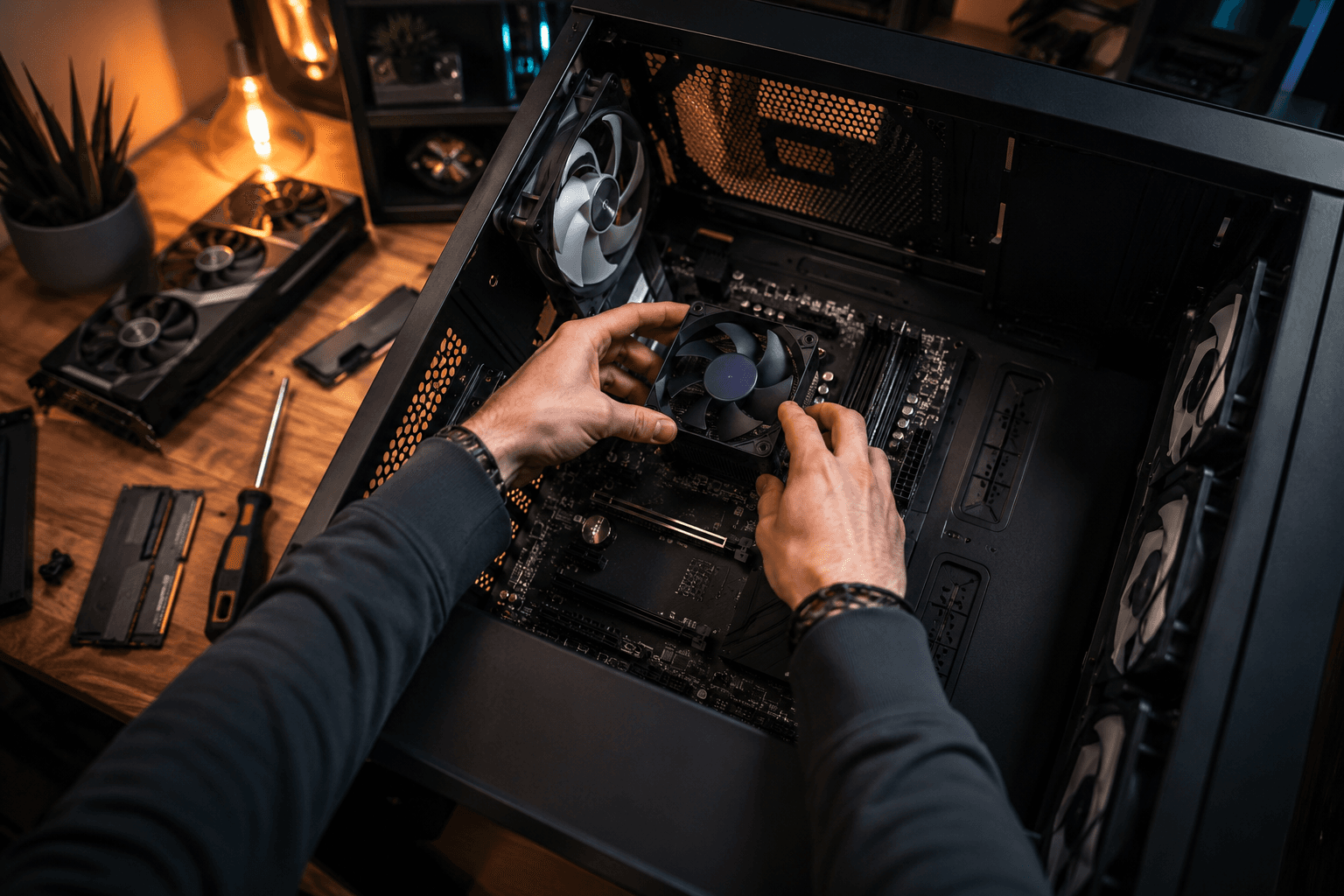
Building your first gaming PC is one of the best ways to understand exactly how your system works while getting better value than many pre-built alternatives. The process looks complicated from the outside, but modern PC hardware is largely designed to fit together in a straightforward way.
Quick Answer: To build your first gaming PC, choose compatible components, prepare your workspace, install the CPU, RAM and storage onto the motherboard, mount everything inside the case, connect power cables, install Windows and update drivers. Most first-time builders can complete the process in 2–4 hours.
Many people assume PC building requires advanced technical knowledge. In reality, patience is usually more important than expertise. The majority of problems I see with first-time builds come from rushing, missing a cable connection or skipping a step rather than doing something technically difficult.
Why Build Your Own Gaming PC?
Building your own system gives you complete control over component selection, upgrade paths and overall budget.
A common mistake buyers make is focusing entirely on specifications while ignoring upgrade potential. A carefully selected custom build often remains useful for much longer because individual components can be upgraded over time.
Benefits include:
✓ Better value for money compared to many off-the-shelf systems
✓ Greater control over component quality
✓ Easier future upgrades
✓ Improved understanding of your hardware
✓ Simpler troubleshooting when issues occur
If you're still deciding whether building is right for you, our guide on Best Gaming PC Build Under £1000 UK (2026) explains how to balance performance and budget effectively.
Components You'll Need
Before starting, gather every component and verify compatibility.
→ CPU (Processor)
→ Motherboard
→ Graphics Card (GPU)
→ RAM
→ Storage Drive (NVMe SSD Recommended)
→ Power Supply Unit (PSU)
→ PC Case
→ CPU Cooler
→ Operating System
For most first-time gaming builds in 2026, a Ryzen 5 or Intel Core i5 paired with an RTX 4060, RTX 4070 or equivalent Radeon card offers an excellent starting point depending on budget.
One issue that regularly appears during repairs is buyers overspending on motherboards while cutting corners on graphics cards. For gaming performance, the GPU typically deserves a larger share of the budget.
Tools You'll Need
Thankfully, PC building requires very few tools.
→ Phillips screwdriver
→ Small container for screws
→ Cable ties or Velcro straps
→ Good lighting
→ Clean workspace
Anti-static wrist straps can be useful but are not essential. Simply avoid building on carpet and touch a grounded metal surface periodically while working.
Check Compatibility Before Building
Compatibility checks should happen before any hardware arrives.
Verify:
✓ CPU matches motherboard socket
✓ Motherboard fits the chosen case
✓ RAM is supported by the motherboard
✓ Power supply provides sufficient wattage
✓ Graphics card fits inside the case
✓ CPU cooler clearance is adequate
Most compatibility problems are preventable. Spending five minutes checking specifications can save hours of frustration later.
If you're unsure about component compatibility, our PC Builder tool can help simplify the selection process.
Step 1: Prepare the Motherboard
The easiest approach is installing several components before the motherboard enters the case.
Place the motherboard on its box or anti-static packaging. This provides a stable working surface while protecting the board from accidental damage.
Install the CPU
Locate the CPU socket and carefully open the retention mechanism.
Align the triangle marker on the processor with the triangle marker on the motherboard socket. The CPU should drop into place without force. If you need to push it down, something is wrong.
✓ Open socket retention arm
✓ Align triangle indicators
✓ Lower CPU gently
✓ Secure retention mechanism
Bent pins remain one of the most expensive mistakes first-time builders make. Never force a processor into position.
Install the RAM
RAM installation is straightforward once the motherboard manual identifies the correct slots.
Many first-time builders install memory in adjacent slots, preventing dual-channel operation. Always check your motherboard manual before installation.
✓ Open retention clips
✓ Align notch correctly
✓ Press firmly until clips lock
You should hear or feel a noticeable click when properly seated.
Install the NVMe SSD
Most modern gaming systems use NVMe SSDs because they offer significantly faster loading times than traditional hard drives.
Remove the SSD mounting screw, insert the drive at an angle and secure it gently.
✓ Remove SSD screw
✓ Insert NVMe drive
✓ Secure mounting screw
✓ Reattach heatsink if included
Step 2: Prepare the Case
Remove both side panels and inspect the interior carefully.
Check that the motherboard standoffs match your motherboard size. Installing a motherboard directly against the case without standoffs can cause serious damage.
Before continuing, verify the case has:
✓ Correct standoff locations
✓ Front panel connectors accessible
✓ Pre-installed fans connected properly
✓ Adequate space for GPU and cooler
This is often the best time to route any case cables toward their intended locations.
Step 3: Install the Motherboard
Lower the motherboard into the case carefully while aligning it with the rear I/O shield area and standoffs.
Secure screws gradually rather than tightening one corner completely first. This helps maintain even pressure across the board.
✓ Align motherboard with standoffs
✓ Install screws loosely initially
✓ Tighten evenly
✓ Avoid overtightening
Motherboards are stronger than many beginners think, but excessive force can still crack traces or damage mounting points.
Step 4: Install the Power Supply
The power supply is the heart of the system. A poor-quality PSU can create instability, crashes and hardware failures.
Position the PSU according to your case design. Most modern cases place it at the bottom with the fan facing downward toward a filtered intake.
✓ Mount PSU securely
✓ Route major cables early
✓ Leave sufficient slack
✓ Keep cables organised
One mistake I see regularly is buying a cheap power supply to save money. The PSU is rarely the component worth cutting costs on.
Step 5: Install the Graphics Card
The graphics card typically has the biggest impact on gaming performance.
Remove the appropriate PCIe slot covers before inserting the GPU into the motherboard's primary PCIe x16 slot.
✓ Remove slot covers
✓ Insert GPU firmly
✓ Secure mounting screws
✓ Connect PCIe power cables
The card should sit level once installed. Sagging can become an issue with larger GPUs, so support brackets may be worth considering.
Step 6: Connect All Cables
Cable management affects airflow, appearance and future maintenance.
Connect:
→ 24-pin motherboard power
→ CPU EPS power cable
→ GPU power cables
→ Front panel connectors
→ USB headers
→ Audio headers
→ Case fan cables
Front panel connectors often cause the most confusion. Your motherboard manual will clearly show the correct pin layout.
Many "dead" PCs simply have incorrectly connected power switch cables.
Step 7: Double Check Everything
Before pressing the power button, inspect every connection carefully.
Verify:
✓ CPU power connected
✓ Motherboard power connected
✓ RAM fully seated
✓ GPU fully seated
✓ Monitor connected to graphics card
✓ No loose screws inside case
Taking ten minutes here can prevent hours of troubleshooting later.
Step 8: First Boot and BIOS Setup
Power on the system and enter the BIOS.
If the system starts successfully, that's already the hardest part completed.
Check:
✓ CPU temperature
✓ RAM detected correctly
✓ Storage drive visible
✓ Fans operating normally
✓ Boot order configured
Enable XMP or EXPO memory profiles if available. Many systems lose performance simply because high-speed RAM runs at default settings.
Step 9: Install Windows and Drivers
After BIOS setup, install Windows using a bootable USB drive.
Once installation finishes, update:
✓ Motherboard chipset drivers
✓ Graphics card drivers
✓ Network drivers
✓ Windows updates
Driver updates solve many stability and performance issues that new builders encounter.
Common First-Time PC Building Mistakes
Several issues appear repeatedly during repairs and troubleshooting.
✓ Forgetting CPU power cable
✓ Incorrect RAM slot placement
✓ Loose front panel connectors
✓ Using too much thermal paste
✓ Not removing protective plastic from coolers
✓ Connecting monitor to motherboard instead of GPU
✓ Skipping BIOS updates when required
Most of these problems are simple to fix once identified.
Should You Build or Buy?
Building offers flexibility and often better value, but it isn't the right choice for everyone.
If you enjoy learning about hardware and want maximum control over component selection, building makes sense. If you prefer a ready-to-use system with professional assembly and testing, a custom-built solution may be more suitable.
The important thing is choosing the option that fits your confidence level, budget and available time.
Final Thoughts
Building your first gaming PC may feel intimidating before you start, but modern hardware is more beginner-friendly than ever. Careful preparation, patience and attention to detail matter far more than technical experience.
Most builders finish their first system wondering why they waited so long to try it. Once you've completed one build, future upgrades and repairs become significantly easier because you'll understand how every component works together.
FAQs
Is building a gaming PC difficult for beginners?
No. Most first-time builders can complete a build successfully by following instructions carefully and taking their time.
How long does it take to build a gaming PC?
Most beginners take between two and four hours for a complete build and setup.
Do I need expensive tools?
No. A quality Phillips screwdriver handles nearly all assembly tasks.
Can I damage components while building?
Damage is uncommon when parts are handled carefully and never forced into place.
How much should I spend on my first gaming PC?
This depends on your goals, but many UK gamers find excellent results between £800 and £1,500.
Is AMD or Intel better for a first gaming PC?
Both offer strong gaming options. The best choice depends on pricing, platform features and upgrade plans.
Should I build my own PC or buy one?
Build your own if you want control and learning experience. Buy a professionally assembled system if convenience is the priority.